Crew, Settings & Offline2 min readUpdated 12 October 2026Web app
Project settings and feature flags
This article covers the web app.
Project settings is where you rename the production, switch features on or off, and check when access runs out. It needs Admin access, so if you cannot open it you do not have permission for this project.
Open your Project Settings, make your changes, then click Save.
Project details
- Project Title: the production name your crew sees. It cannot be left blank.
- Status: Active or Expired.
- Type: the kind of production, for example a feature or an episodic show. Episodic projects unlock the Episodes section.
- Expires On: when the project access ends.
Features
The Features section turns optional workflows on for the whole project:
- Crowd Changes (costume) and Crowd Looks (makeup): switch on the crowd-tracking workflow for each department. See Crowd changes and looks.
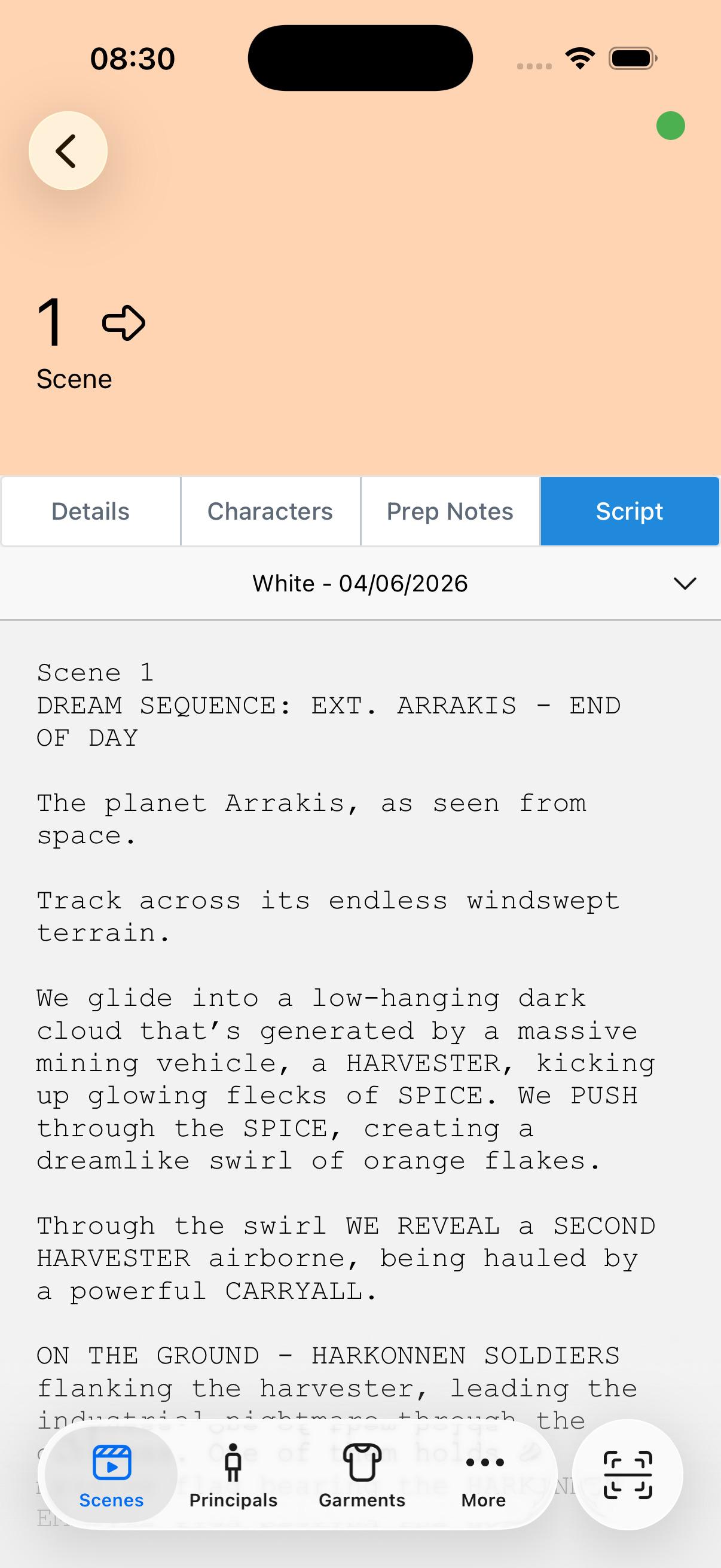
- Allow script viewing: adds a Script tab to every scene, on the web and in the app, so crew can read the imported script. See Reading the script in Haystack.
Feature switches apply to everyone on the project, not just you. Turning a crowd feature off hides those workflows for the whole crew.
Script import
- Script revision colours: the revision colour sequence Haystack suggests when you import script revisions. See Re-importing a revised script.
- AI Model: the model used to analyse imported scripts. Leave it on the default unless the Haystack team suggests otherwise.
Both are owner settings.
Some controls, such as the project Status and the episode count on episodic shows, are limited to Haystack admins. If you do not see a field, it is managed for you and you do not need to set it.